
The fastest path to a working Salesforce Google Ads integration depends on what you actually need from it. For most teams, Google Ads Data Manager is the right starting point: it handles offline conversion imports and audience syncs natively, requires no custom code, and connects directly to Salesforce Lead, Opportunity, and Order objects. If you’re ingesting lead form submissions in near-real time, the Google Ads API or lead form webhook is the right layer. For simple, low-volume workflows where speed matters more than precision, Zapier gets you there in a day. And if you’re spending $25K or more per month and need keyword-level attribution or historical backfills, a proper ETL pipeline into BigQuery or Snowflake is the only architecture that gives you the data fidelity to make those decisions well.
Here’s how to pick your path:
- Small team, fast win: Google Ads Data Manager native connection. Minimal setup, no developer required, live in 1–3 days.
- Enterprise or high-spend ($25K+/mo): ETL/data warehouse stack. Keyword-level joins, historical backfill, and advanced attribution modeling that native connectors can’t provide.
- Long sales cycles, revenue-based bidding: Map Salesforce Closed-Won records back to Google Ads as offline conversions so Smart Bidding optimizes for actual revenue, not form fills.
- Customer Match or PII-based audience flows: Use Zapier or another middleware. Data Manager doesn’t support Customer Match from Salesforce via direct connection.
The core trade-off is speed vs. granularity vs. governance. Data Manager is fast but campaign-level. ETL is slow to build but gives you every click, every keyword, every dollar.
Pro Tip: Before choosing a path, audit your landing pages for GCLID capture. If your forms aren’t writing the Google Click ID into Salesforce, no integration method will produce accurate attribution.
Key Takeaways
The most reliable Salesforce Google Ads integration starts with GCLID capture on every landing page, uses Google Ads Data Manager for offline conversion imports, and upgrades to an ETL stack only when keyword-level attribution or historical backfill becomes a business requirement.
| Point | Details |
|---|---|
| Choose the right path first | Data Manager for most teams; ETL/warehouse for $25K+/mo accounts needing keyword-level attribution. |
| GCLID capture is the foundation | A missing GCLID__c field on Salesforce records breaks attribution regardless of which integration method you use. |
| Migrate to enhanced conversions | Legacy offline import was deprecated May 31, 2025; enhanced conversions for leads improves match rates and cross-device attribution. |
| Watch the 60-day storage window | Google Ads stores lead form submissions for up to 60 days; automate ingestion to avoid permanent data loss. |
| North Country Consulting | Senior-led Google Ads management for $25K+/mo advertisers, including measurement setup and offline conversion tracking. |
Table of Contents
- Which Salesforce objects and permissions does the integration require?
- How to connect Salesforce to Google Ads using Data Manager
- How should you map Salesforce data to Google conversion actions?
- Enhanced conversions for leads vs. legacy offline conversion import
- Lead-form handling: webhook vs. Google Ads API for near-real-time ingestion
- When does Zapier make sense, and when does it fall short?
- Common errors and diagnostics when the connection fails
- When should you move beyond native connectors to an ETL approach?
- What does setup actually cost and how long does it take?
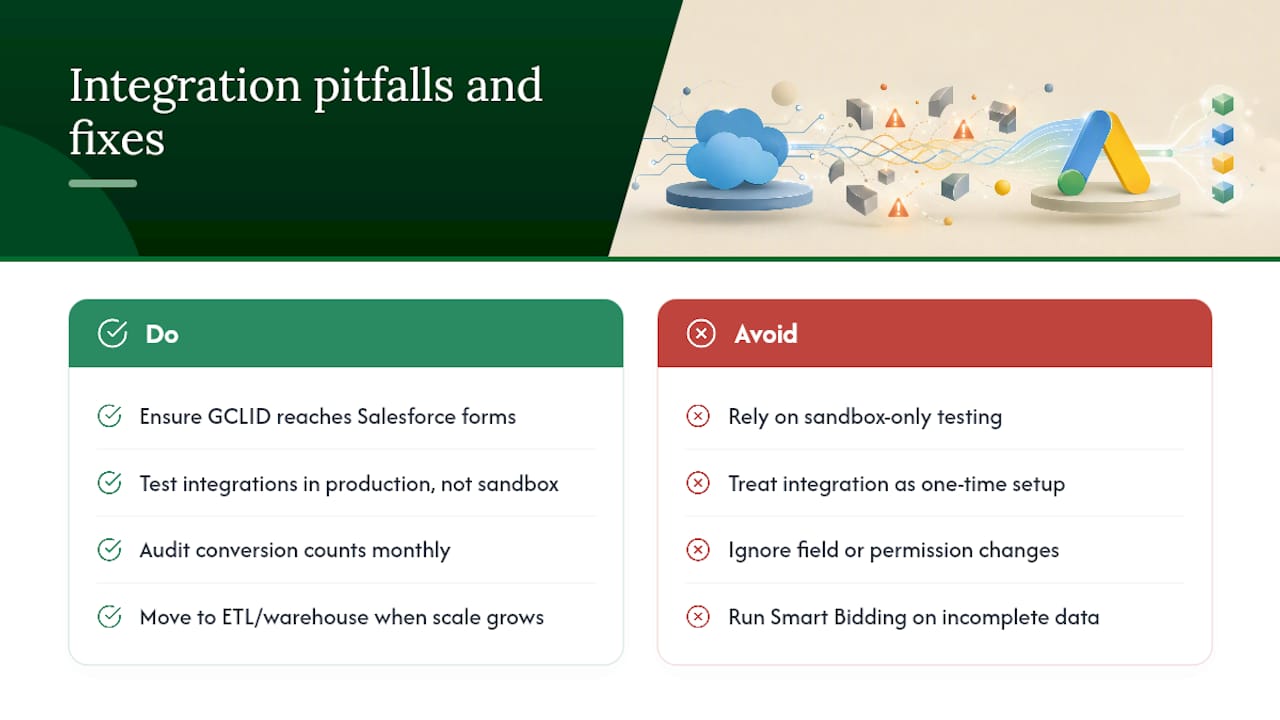
- What the integration usually gets wrong, and how to avoid it
- North Country Consulting handles the measurement so you can focus on growth
- Sources
Which Salesforce objects and permissions does the integration require?
Getting the prerequisites right saves days of debugging later. The integration touches specific Salesforce objects, fields, and API settings, and missing any one of them is the most common reason setups fail.
Supported objects
Google Ads Data Manager supports three Salesforce objects: Lead, Opportunity, and Order. Which one to use depends on your conversion definition:
- Lead: Use when your conversion event is a form fill or initial inquiry. Best for top-of-funnel measurement.
- Opportunity: Use when you want to import a qualified pipeline stage or Closed-Won as the conversion. This is the highest-leverage object for revenue-based bidding.
- Order: Use for e-commerce or transactional flows where a completed purchase is the conversion event.
Required fields to capture and map
These fields need to exist in Salesforce before you configure the connection:
- GCLID__c (custom text field, 255 characters): stores the Google Click ID from the ad click
- Email and Phone: used as hashed identifiers for enhanced conversions for leads
- Opportunity.StageName: used as a filter to select which records to import (e.g., “Closed Won”)
- CloseDate: maps to Conversion Time in Google Ads
- Amount: maps to Conversion Value for revenue-based bidding
Permissions and API settings
Integration failures most often trace back to missing API access or insufficient permissions. Before connecting:
- Enable the Asynchronous API in Salesforce Setup
- Create a dedicated integration user with read/write access on Lead, Opportunity, and Order objects
- Confirm field-level security allows the integration user to read GCLID__c, Email, Phone, StageName, CloseDate, and Amount
- The integration user needs the API Enabled permission in their profile
Critical environment note: Google Ads Data Manager does not support Salesforce sandbox environments. You cannot test the connection against a sandbox org. Plan your testing carefully — use sample production data patterns and validate field mappings before connecting to your live CRM.
Pro Tip: Create the integration user with the minimum permissions required and document every object and field it can access. This makes security audits faster and reduces the blast radius if credentials are ever compromised.
How to connect Salesforce to Google Ads using Data Manager
This is the recommended path for most teams. Follow these steps in order.
Pre-checks
Before opening Data Manager, confirm:
- You have Google Ads admin access (account-level, not manager-level only)
- The Salesforce integration user is created with the permissions listed above
- The Asynchronous API is enabled in Salesforce
- The GCLID__c custom field exists on the Lead or Opportunity object
- Auto-tagging is enabled in your Google Ads account settings
Step-by-step connection
- In Google Ads, navigate to Tools → Data Manager
- Click Add data source and select Salesforce
- Choose your use case: Audiences (for Customer Match syncs) or Conversion actions (for offline conversion import)
- Enter your Salesforce instance URL and the integration user credentials
- Authorize the connection and allow Data Manager to read your Salesforce schema
- Select the object to import from (Lead, Opportunity, or Order)
- Apply a filter to select only the rows you want to import as conversions (example:
StageName = "Closed Won") - Map fields to Google identifiers (see the table below)
- Set the conversion action this import should feed
- Save and run a sample import with a small date range to verify row counts before enabling the full sync
Field mapping reference
| Salesforce Field | Google Ads Identifier | Notes |
|---|---|---|
| GCLID__c | Google Click ID | Primary match key; required for standard offline import |
| Hashed Email | Used for enhanced conversions for leads | |
| Phone | Hashed Phone | Used as fallback identifier |
| CloseDate | Conversion Time | Must be in ISO 8601 format, UTC |
| Amount | Conversion Value | Map currency to match Google Ads account currency |
| StageName | Filter condition | Use to select only Closed-Won rows |
Migration note: legacy integration deprecation
If your account was using the legacy Salesforce connector inside Google Ads (the older “Linked accounts” path), that integration was deprecated as of May 31, 2025. Any account still relying on it needs to migrate to Data Manager. The migration isn’t automatic. You’ll need to recreate your conversion actions under the Data Manager framework and re-map your fields. Check your conversion action source in Google Ads to confirm which path is currently active.
Pro Tip: Run both the legacy import and the new Data Manager import in parallel for 2–3 weeks before cutting over. Compare conversion counts daily. If they diverge by more than a few percent, there’s a field mapping issue to resolve before you decommission the old connection.
How should you map Salesforce data to Google conversion actions?
Field mapping is where most integrations quietly break. The connection succeeds, data flows, and then six weeks later someone notices the conversion counts are wrong because a timestamp was off or a GCLID was missing from half the records.
Mapping patterns that hold up in production
The table below shows the field-level mapping for a standard Closed-Won offline conversion import:
Which object to use and when
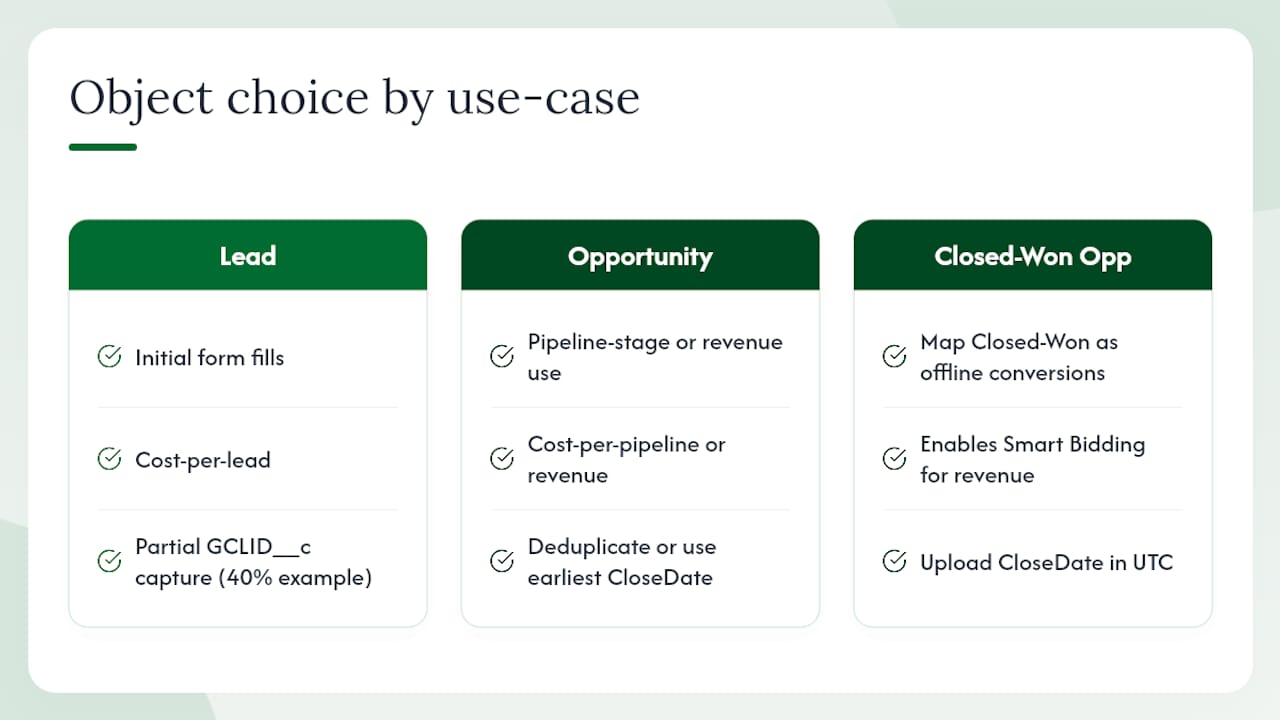
Use Lead when your conversion event is the initial form fill and you want to measure cost-per-lead. Use Opportunity when you want to measure cost-per-pipeline-stage or cost-per-revenue. The highest-leverage configuration is mapping Closed-Won Opportunity records back to Google Ads as offline conversions, because it lets Smart Bidding optimize for actual revenue rather than top-of-funnel volume.
Mapping warning: Partial GCLID capture is the most common silent failure in this integration. If only 40% of your leads have a GCLID__c value populated, Google can only match 40% of your conversions back to clicks. The other 60% disappear from attribution entirely, which makes your campaigns look less effective than they are and causes Smart Bidding to under-invest in your best keywords.
When multiple Opportunity records exist for a single GCLID (a lead that converted twice), Google will count both. Add a de-duplication filter in your import logic, or use the earliest CloseDate per GCLID as the canonical conversion.
Timestamp alignment matters more than most teams expect. Google Ads requires the conversion timestamp to fall within the lookback window of the original click. If your CloseDate is stored in local time and you upload it without converting to UTC, conversions will be attributed to the wrong day or rejected entirely.
Pro Tip: Persist the GCLID in a first-party cookie on landing-page load, then populate a hidden form field named GCLID__c that writes directly to the Lead record on submission. This is the most reliable way to capture GCLIDs across multi-page flows and form redirects, as described in this implementation guide.
Enhanced conversions for leads vs. legacy offline conversion import
Google’s recommendation is clear: migrate to enhanced conversions for leads. The legacy offline conversion import method still works for accounts that haven’t moved, but it’s no longer the recommended path for new setups.
What each method does
Legacy offline conversion import works by uploading a CSV (or via API) that contains a GCLID and a conversion timestamp. Google matches the GCLID to the original click and credits the conversion. It’s straightforward but brittle: if the GCLID is missing, the conversion is lost.
Enhanced conversions for leads adds hashed first-party identifiers (email, phone) as additional match keys. When a GCLID isn’t available (because the user cleared cookies, switched devices, or came through a cross-device path), Google can still match the conversion using the hashed PII. This produces higher match rates and more complete attribution.
Practical differences
- Match rate: Enhanced conversions for leads typically achieves higher match rates because it doesn’t rely solely on GCLID
- Cross-device attribution: Enhanced conversions supports cross-device and engaged-view attribution; legacy import does not
- Identifier support: Enhanced conversions accepts GCLID, hashed email, and hashed phone; legacy import requires GCLID as the primary key
- Setup complexity: Data Manager handles the hashing automatically; legacy import requires you to pre-hash PII before upload
- New setups: Google recommends enhanced conversions for leads for all new configurations and for teams migrating from the legacy path
Pro Tip: If your sales cycle is longer than 90 days, enhanced conversions for leads becomes even more valuable. Long cycles mean more device switches and more cookie expiration events between click and conversion. The hashed email fallback recovers a meaningful share of those conversions that legacy import would miss entirely.
Lead-form handling: webhook vs. Google Ads API for near-real-time ingestion
When you’re running Google Ads lead form assets, leads don’t automatically land in Salesforce. You need to actively pull or receive them. Google Ads supports two primary methods: webhook delivery and Google Ads API retrieval.
Webhook approach
- Configure a customer endpoint URL in your Google Ads lead form settings — this is the URL Google will POST lead data to when a form is submitted
- Set a webhook key (a shared secret) that Google includes in each request so your endpoint can verify the payload is legitimate
- Build a receiver on your CRM or middleware layer that accepts the POST, validates the key, and writes the lead to Salesforce
- Map the incoming fields (name, email, phone, campaign ID, ad group ID) to the corresponding Salesforce Lead fields
- Return a 200 HTTP response within a few seconds or Google will retry
The webhook approach is as close to real-time as this integration gets. Leads arrive within seconds of form submission, which matters for sales teams with fast follow-up SLAs.
Google Ads API approach
The API path requires a developer token and a manager account with the correct access level. Once configured, the Google Ads API can retrieve up to 60 days of lead form submissions and supports near-real-time retrieval when polled frequently.
Key considerations:
- Use the
lead_idfield for deduplication — the same lead can appear in multiple API responses if you poll overlapping time windows - Poll frequently enough to stay within the 60-day storage window; leads older than 60 days are no longer retrievable
- The API path adds engineering overhead but gives you more control over retry logic, error handling, and backfill
Pro Tip: Don’t rely on manual CSV downloads for production lead ingestion. The 60-day storage window creates real urgency — a missed download during a vacation week or a system outage can mean permanent data loss for leads that never made it into Salesforce.
When does Zapier make sense, and when does it fall short?
Zapier supports Google Ads to Salesforce workflows for lead form delivery and offline conversion uploads. For small teams running straightforward flows, it’s a legitimate option. For enterprise measurement, it has real limits.
Where Zapier works well
- Lead form delivery: Zapier can receive a webhook from Google Ads lead forms and create a Salesforce Lead record automatically. Setup takes hours, not days.
- Simple offline conversion uploads: Zapier can trigger a conversion upload to Google Ads when a Salesforce Opportunity reaches a specific stage.
- Prototyping: If you need to validate a workflow before investing in a custom build, Zapier lets you test the logic quickly.
Where Zapier falls short
- Polling cadence: Zapier’s trigger checks run on a polling schedule (every 1–15 minutes depending on your plan), not in true real-time. For sales teams with aggressive follow-up SLAs, that lag matters.
- Customer Match/PII: Direct Data Manager connections don’t support Customer Match from Salesforce, and Zapier doesn’t change that. PII-based audience syncs require a different architecture.
- Rate limits and cost at scale: At high lead volumes, Zapier’s task limits and per-task pricing add up quickly. A workflow that costs $50/month at 500 leads/month becomes expensive at 10,000.
- Error handling: Zapier’s retry logic is limited. A failed Zap doesn’t automatically backfill missed records, which means data gaps in your Salesforce pipeline.
For production-critical workflows, add logging at the Zap level and set up Zapier’s built-in error notifications. A marketing automation checklist that covers webhook and automation workflow guardrails can help you structure the right retry and backfill strategy before you go live.
Common errors and diagnostics when the connection fails
Most integration failures fall into a small set of categories. Work through this checklist before escalating.
Quick diagnostic checklist
- API not enabled: Confirm the Asynchronous API is active in Salesforce Setup. This is the single most common cause of authentication failures.
- Integration user permissions: Verify the user has read/write on Lead, Opportunity, and Order objects, plus field-level access to every mapped field.
- GCLID missing from records: Pull a sample of recent Lead records and check the GCLID__c field. If it’s blank on more than 20–30% of records, your landing-page capture is broken.
- Timestamp format errors: Google Ads requires ISO 8601 format with timezone offset. A CloseDate stored as
2025-06-15without a time component will be rejected. - Time zone misalignment: If your Salesforce org is set to a non-UTC timezone and you’re not converting on export, conversions will land on the wrong day.
- Sample data verification: Before enabling a full sync, run a manual upload with 10–20 rows and check the Google Ads conversion action for matching counts within 24 hours.
Common error messages and fixes
- “No data imported”: Usually a filter issue. The StageName filter may not match the exact text in Salesforce (case-sensitive). Check for trailing spaces or alternate stage names.
- “Authentication failed”: The integration user’s password may have expired, or the connected app in Salesforce may have been revoked. Reconnect the Data Manager source.
- “Field mapping error”: A mapped field no longer exists or has been renamed in Salesforce. Re-open the Data Manager connection and re-map the affected field.
Using Data Manager diagnostics
Inside Data Manager, each data source has a Diagnostics tab that shows the last sync status, row counts, and any error codes. Check it weekly during the first month after setup. If row counts drop suddenly, it usually means a Salesforce field was modified or the integration user’s permissions changed.
Pro Tip: Create a dedicated Salesforce report that shows Closed-Won Opportunities from the last 30 days with their GCLID__c values. Run it weekly and compare the count to your Google Ads offline conversion imports. A persistent gap between the two numbers is your earliest signal that something in the data flow has broken.
When should you move beyond native connectors to an ETL approach?
Native connectors are the right starting point. They’re not always the right ending point.
Decision criteria
Consider moving to an ETL/data warehouse architecture when:
- Monthly ad spend exceeds $25K and you need keyword-level attribution (which campaign, which keyword, which ad drove a Closed-Won deal)
- You need historical backfills of more than 90 days to rebuild attribution after a tracking gap
- Your team runs advanced attribution modeling (data-driven, Markov chain, or time-decay) that requires raw click-level rows
- You need to join Google Ads data with other sources (Salesforce, your data warehouse, financial systems) in a single model
- The native connector’s campaign-level aggregation is hiding performance differences between ad groups or keywords
Example architecture
Practitioners use ETL/ELT pipelines to centralize Google Ads and Salesforce data into a warehouse for click-level attribution. A typical stack looks like this:
- Extract: Fivetran or Airbyte pulls raw Google Ads data (clicks, impressions, cost by keyword) and Salesforce data (Lead, Opportunity, Order) on a scheduled cadence
- Load: Both datasets land in BigQuery or Snowflake
- Transform: dbt models join the two datasets on GCLID, producing a unified table of ad clicks matched to CRM outcomes
- Report/Model: Looker, Tableau, or a custom ML model reads from the joined table
The GCLID is the join key. Every row in your Google Ads click export has a GCLID. Every Salesforce Lead or Opportunity with a populated GCLID__c can be joined to it. The match rate on that join is your attribution coverage.
Trade-offs
This architecture takes 4–12 weeks to build properly and requires dedicated engineering time. The payoff is complete data ownership, keyword-level visibility, and the ability to run attribution models that native connectors can’t support. For teams at $25K+/month in ad spend, the ROI on that investment is typically clear within one quarter.
Pro Tip: Implement a GCLID-first ingestion pattern in your ETL: always extract the GCLID column first and use it as the primary key for deduplication. This reduces lost-match rates caused by duplicate rows and ensures your join quality stays high as data volumes grow.
What does setup actually cost and how long does it take?
Typical timelines
- Google Ads Data Manager native connection: 1–3 days, including field mapping and sample validation
- Webhook or Google Ads API ingestion: 1–2 weeks, including endpoint development, testing, and Salesforce field mapping
- Zapier flows: 1–3 days for simple workflows
- ETL/data warehouse stack: 4–12+ weeks, depending on data model complexity and team availability
Cost drivers
- Salesforce licensing: Marketing Cloud or Data Cloud licenses add cost if you’re using those products for the connector. Standard Sales Cloud is sufficient for the Data Manager path.
- Developer time: Webhook and API builds typically require 20–40 hours of engineering time for a production-ready implementation.
- iPaaS subscription: Zapier’s paid plans range from modest to significant depending on task volume. Factor in task counts at your actual lead volume before committing.
- ETL tool + warehouse compute: Fivetran and Airbyte have connector-based pricing. BigQuery and Snowflake charge for storage and compute. For most teams, these costs are manageable relative to ad spend, but they’re not zero.
Governance controls
- PII handling: Define which fields contain PII (email, phone, name) and apply field-level encryption or masking in your warehouse. Google hashes PII before using it for matching, but your internal storage policies may require additional controls.
- Access controls: Restrict warehouse access to the tables containing raw PII. Analysts should query aggregated or hashed views, not raw email addresses.
- Customer Match restrictions: Google’s Customer Match policies require that you have explicit consent from users whose data you’re uploading. Document your consent basis before enabling any PII-based audience sync.
- Audit logging: Enable Salesforce’s field history tracking on GCLID__c and any other fields the integration reads. This creates an audit trail if data quality questions arise later.
- Rollback and backfill: Document the process for re-uploading conversions if a sync fails. Google Ads accepts backdated conversion uploads within the conversion window, so a 48-hour outage is recoverable if you have the source data.
For a periodic data quality review, a monthly check of conversion counts against Salesforce Closed-Won records is the minimum. Quarterly, review field mappings against any Salesforce schema changes your admin team has made.
What the integration usually gets wrong, and how to avoid it
The GCLID problem is more widespread than most teams realize. A significant share of Google Ads integrations with Salesforce are technically “working” — Data Manager is connected, conversions are importing — but the match rate is so low that the data is nearly useless for bidding. The form captures the lead. The GCLID never makes it to Salesforce. Smart Bidding sees a fraction of actual conversions and optimizes accordingly, which means it’s flying partially blind.
The sandbox restriction is the second trap. Teams build their entire integration against a Salesforce sandbox, get it working perfectly, then connect Data Manager to production and discover the connection behaves differently because the schema diverged. Plan for production-only testing from the start, even if that means being more careful about creating test records.
My broader recommendation for high-spend advertisers: treat the integration as infrastructure, not a one-time setup task. Field mappings break when Salesforce admins rename fields. Permissions change when integration users are deactivated. Conversion counts drift when stage names are updated. A monthly audit of conversion counts against Salesforce Closed-Won records catches these failures before they compound into a quarter of bad bidding data.
When the data volume or attribution complexity grows past what native connectors can handle, don’t delay the ETL decision. The cost of running Smart Bidding on incomplete data at $50K/month in ad spend is almost always larger than the engineering cost of building the warehouse integration properly.
North Country Consulting handles the measurement so you can focus on growth
For advertisers spending $25K or more per month on Google Ads, getting the Salesforce integration right isn’t optional — it’s the difference between Smart Bidding that optimizes for revenue and Smart Bidding that optimizes for form fills. North Country Consulting builds and manages exactly this kind of measurement infrastructure as part of its senior-led Google Ads management service. The team has managed over $40 million in ad spend and averages an 8.7× return on ad spend across accounts, with offline conversion tracking and attribution model setup included in every engagement.
If your current setup has gaps in GCLID capture, a legacy integration that hasn’t been migrated, or conversion data you don’t fully trust, a free strategy audit will surface exactly where the measurement is breaking down. Request your free audit and get a senior-level review of your Google Ads account and Salesforce integration within the week.
Sources
The following resources were used in building this guide and are worth bookmarking for implementation:
- How to Connect Google Ads to Salesforce: Methods — Fairview
- Google Ads Salesforce Integration – Quick Connect