
Labels in Google Ads are private tags you attach to campaigns, ad groups, ads and keywords so you can filter, group and report on them however your business thinks. They never change how an ad is served or what a customer sees. The catch: “label” means four different things in Google’s tools, and most confusion (and most broken reports) comes from mixing them up. This guide covers each type, the exact steps to use them, a naming system that holds up in a large account, and the pitfalls we see in accounts spending real money.
TL;DR
- Standard labels are internal tags for campaigns, ad groups, ads and keywords. They help you filter and report and have no effect on delivery.
- Labels are not inherited. A label on a campaign does not apply to its ad groups or keywords, so tag every level you plan to report on.
- Custom labels (0 to 4) are a separate feature set up in Merchant Center for Shopping and Performance Max. Account labels live in manager accounts. AI labels are a disclosure setting.
- The value comes from a strict naming convention written down before you create the first label.
- Sitelinks, callouts and structured snippets are customer-facing assets, not labels. Don’t use one to do the job of the other.
Table of Contents
- The four things people call a label
- What standard labels do (and don’t do)
- How to create and apply a label
- Ten practical uses for labels
- Labels versus campaign names
- A labeling system that survives a big account
- Custom labels for Shopping and Performance Max
- Account labels in manager accounts
- AI labels are a separate matter
- Sitelinks, callouts and snippets are not labels
- Reporting with labels
- Managing labels at scale with scripts and the API
- Our perspective: labels expose how an account is run
- Want a second set of eyes on your account?
- FAQ
- Sources
The four things people call a label
Search for this topic and you’ll find guides about Business Profile labels, Gmail labels and Shopping feed fields, all under the same word. Inside Google Ads there are four distinct tools.
| Type | Where you set it | What it does | Customer-facing? |
|---|---|---|---|
| Standard labels | Inside a Google Ads account | Group campaigns, ad groups, ads and keywords for filtering and reports | No |
| Custom labels (0 to 4) | Merchant Center product feed | Subdivide products for bidding and targeting in Shopping and Performance Max | No |
| Account labels | Manager (MCC) account | Group client accounts | No |
| AI labels | Asset settings | Disclose that an asset was created or edited with AI | Can be used by Google in ads |
The rest of this article spends most of its time on standard labels, because that is what most people mean, then covers the other three so you know where each belongs.
What standard labels do (and don’t do)
Google describes labels as a way to organize the elements in your account into meaningful groups so you can quickly filter and report on the data that matters to you. You can apply them to keywords, campaigns, ad groups and ads. They are customizable, and you can change them at any time.
Three facts shape how you should use them:
- They are internal. They don’t influence ad delivery and customers never see them.
- They have a generous ceiling. An account can hold up to 100,000 labels. You will run out of discipline long before you run out of labels.
- They are flat. Labels are not hierarchical by default, so structure comes from how you name them, not from the tool.
That last point is the whole game. Labels are a reporting layer you design yourself, and a layer without rules turns into noise quickly.
How to create and apply a label
Google’s own walkthrough, create, use, and manage labels, follows these steps:
- In your account, open Campaigns, then choose the Campaigns, Ad groups or Ads view. For keywords, use the Search keywords view.
- Check the box next to each item you want to tag.
- Click the Label drop-down in the banner that appears above the table.
- Choose New label, enter a name, pick a color and add an optional description, then click Create.
- Click Apply. To reuse an existing label, tick it in the list and apply it instead.
You can select many rows at once, so tagging 200 keywords takes one action. Then use the table filter to show only items with a given label, or add label columns to a report.
Write the description
The description field is optional, and almost nobody fills it in. Use it. Six months from now, “Q4-test” will mean nothing to the person who inherits the account. “Q4 2026 promo test, owner: paid media lead, remove after Jan 15” means plenty.
Ten practical uses for labels
The older guides on this topic are right that color coding and consistent use make labels easier to scan, and the same logic holds today. These are the uses we find earn their keep:
- Test tracking. Tag the ads or campaigns in an experiment, with the start date in the name, so you can compare them later without hunting through change history.
- Champion and challenger ads. Mark the control ad and the new variants so ad-level reports separate them cleanly.
- Bid changes. Tag keywords whose bids you raised or cut, so the next review looks at results before moving them again.
- Paused and retired items. Mark what you paused on purpose and why, so nobody turns it back on by accident.
- Business priority. Separate high-margin lines from low-margin ones when campaign names can’t carry that information.
- Funnel stage. Tag prospecting, consideration and retargeting work so you can total performance by stage across campaigns.
- Seasonal and promo windows. Group everything touched by a sale, then compare against the same window last year. Our note on seasonality adjustments covers how to handle those periods in bidding.
- Owner or team. In shared accounts, tag who is responsible for each campaign.
- Audit findings. Tag items that need cleanup, like keywords with search terms that waste spend, then work through the list. Our walkthrough on auditing a Google Ads account shows what to look for.
- Script targets. Let automation act only on items carrying a specific label (more on that below).
Labels versus campaign names
We are often asked why not just put everything in the campaign name. Names are the first and best tool. A clear naming scheme is searchable, shows up in every report and survives exports. We wrote about naming conventions that are ready for AI-driven workflows, and that is where to start.
Labels do what names can’t:
- They can be applied across levels that don’t share a name, such as keywords scattered over many ad groups.
- One item can carry several labels at once, while a name has to pick an order.
- They can be added and removed without renaming an entity, which preserves your reporting history and any naming rules your scripts or dashboards depend on.
The rule of thumb: names describe what something is, labels describe what you are doing with it. A campaign’s channel, geography and product line belong in its name. “Under test until Nov 30” belongs in a label.
A labeling system that survives a big account
Google’s guidance and practitioner experience point the same way: labels are only as good as the consistency behind them, and inconsistent use across a large account makes reports unreliable and hard to filter. Build the system before the first label exists.
Use prefixes as categories
Because labels are flat, simulate folders with a prefix and a separator. For example:
TEST | 2026-Q4 | headline-lengthSTAGE | prospectingSTATUS | paused-by-designOWNER | jordanPRIORITY | high-margin
Sorted alphabetically, every test sits together, every status sits together. Pick one separator and never mix it with another.
Keep the vocabulary closed
Write the allowed prefixes and values in a shared document. Anyone can propose a new value, and one person approves it. This is dull and it works. Without it you get Test, test, Testing and TEST-Q4, which are four labels that filter as four different groups.
Use color for category, not decoration
Assign one color per prefix, such as one for tests, one for status, one for owner. Then a quick look at the table tells you what kind of tag you’re seeing.
Expire labels
Put a review date in the description for temporary labels, and clear them on a schedule. A label that nobody maintains is worse than none, because people trust it.
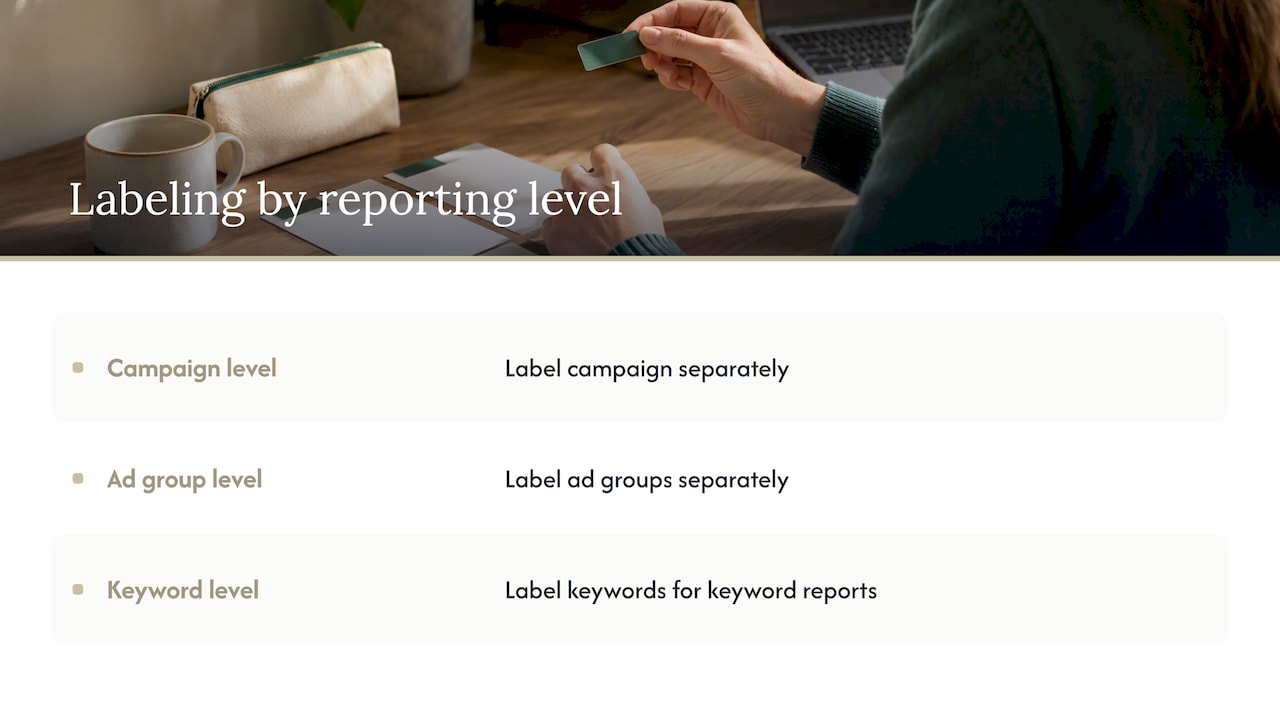
Apply labels at every level you will report on
Here is the pitfall that catches experienced teams. Labels are not inherited. If you label a campaign, its ad groups and keywords do not pick it up automatically, and you must apply the label at each entity level you intend to filter or report on. Otherwise a keyword report filtered by label will quietly leave out data you assumed was included. If you know you’ll need keyword-level reports for a test, label the keywords.
Custom labels for Shopping and Performance Max
Custom labels are a different mechanism with a similar name. They are fields in your product feed, custom_label_0 through custom_label_4, and Merchant Center describes them as a way to create filters for Performance Max, Shopping or Demand Gen campaigns, used for reporting and bidding.
Google’s Shopping ads guidance covers the use case: with a Merchant Center feed, custom labels help you control which products appear in your ads. Typical groupings are:
- Margin tier: high, medium, low, so bids track profitability rather than revenue alone.
- Seasonality: summer, holiday, evergreen.
- Lifecycle: new arrival, bestseller, clearance.
- Price band: to separate impulse buys from considered purchases.
Limits and delays to plan for
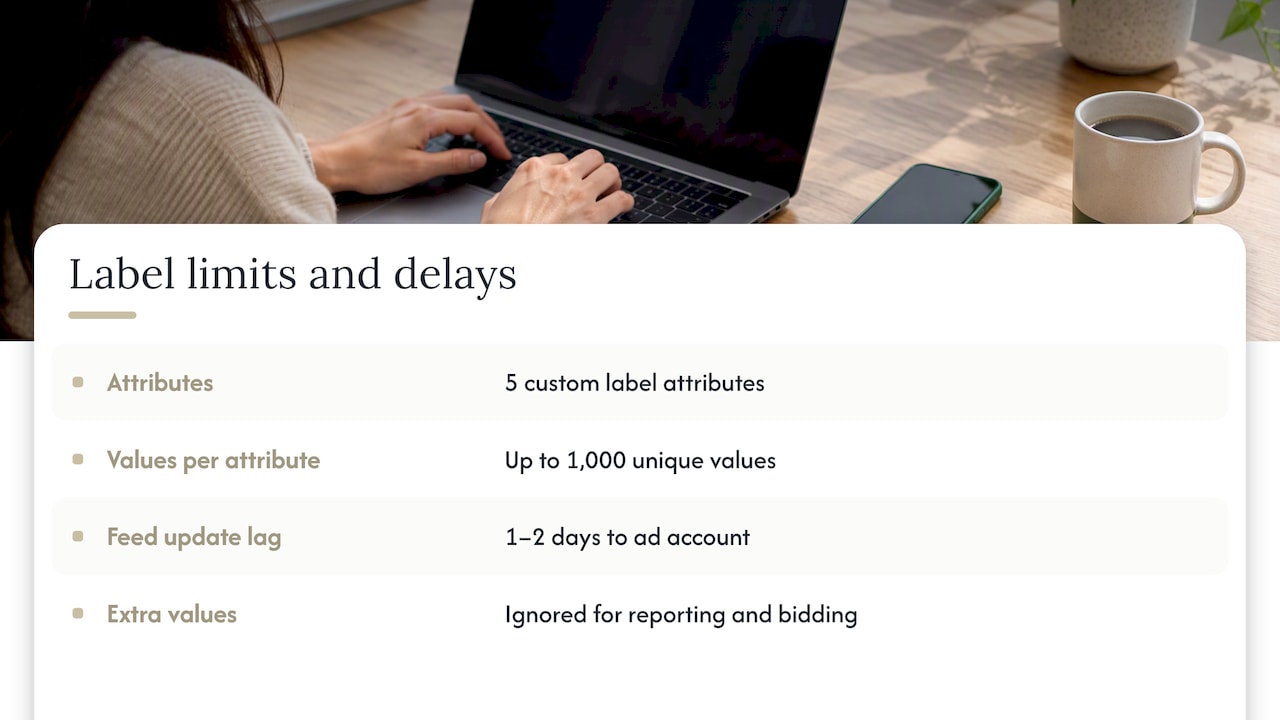
You get five attributes, and each can hold up to 1,000 unique values, per Merchant Center’s custom label documentation. That is plenty for a sensible scheme and a trap for an unsorted one: auto-generated values from a feed rule can blow past the limit, and extra values are ignored for reporting and bidding, often without a clear warning in the interface. Count your distinct values before you launch.
Also expect lag. Plan on a day or two between changing a custom label in your feed and seeing it reflected in the ad account, so don’t schedule a promo push for an hour after the feed update. If you manage product groups, Google’s page on product and listing groups explains how attributes subdivide a Shopping campaign.
For e-commerce brands, margin-based custom labels are among the highest-leverage structures you can build, because they let bidding follow profit rather than top-line sales. If you are weighing how Performance Max fits with Shopping, our guide to Google Ads campaign types lays out the differences.
Account labels in manager accounts
Agencies and multi-brand businesses use a manager account, and there you will see two kinds of label. Google explains the split: regular labels are created and assigned to campaigns at the individual account level, while account labels are created and assigned to accounts at the manager level. Account labels can only be viewed and managed from the manager account.
Use them to group client accounts by region, vertical, contract type or reporting cadence. Google’s page on creating and editing account labels walks through the setup. Never expect an account label to show up inside a sub-account’s campaign filters; it won’t.
AI labels are a separate matter
Google Ads now has a setting that lets you identify an asset as created or edited with AI, covered in Google’s help page on the feature. It is a disclosure feature, not an organizational tag, so keep it out of your labeling scheme. Consider a separate internal label, such as ASSET | ai-generated, if you want to compare how those assets perform against human-made ones.
Sitelinks, callouts and snippets are not labels
People researching labels often also search for sitelink, callout and structured snippet strategy. These are ad assets: they appear alongside your ads and customers see them. Labels are the opposite, internal and invisible. Two practical consequences:
- Treat asset copy as ad copy. Sitelinks should point to distinct, useful pages (pricing, a category, a case study) rather than repeat your homepage. Callouts work best as short, concrete differentiators like shipping terms or service guarantees. Structured snippets list specifics, such as brands or service types, under a header.
- Use labels to track assets. Tag the asset set you’re testing, then compare it against the previous set after a fixed window.
That pairing, customer-facing assets plus internal tags to measure them, is how teams turn asset work into repeatable learning instead of guesswork.
Reporting with labels
Once labels are in place, the payoff is in reports. The Google Ads API documentation on labels notes that reports can be filtered by label, and in the interface you can add label columns or filter any table by label.
A few reports worth building:
- Test scorecard: all items with a given
TESTlabel, before and after, with conversions and cost per conversion side by side. - Priority view: spend and return for
PRIORITY | high-marginversus the rest. If spend is flowing toward low-margin lines, you want to know now. - Cleanup queue: everything tagged for review, sorted by cost.
Be careful with what you conclude. A label report is only as accurate as your tagging and your conversion tracking. If conversion values are wrong, the cleanest label structure just organizes wrong numbers. We rebuild conversion tracking and attribution before touching structure for exactly that reason.
Managing labels at scale with scripts and the API
Manual tagging works up to a point. In large accounts, people use automation: Google Ads scripts support labels at account, campaign, ad group, ad and keyword levels, and the API lets you create labels with LabelService and assign them with services such as CampaignLabelService.
Good automation patterns:
- A script that applies a label to any keyword whose bid it changed, with the date.
- A script that acts only on items carrying a label like
AUTO | eligible, so nothing is touched unless a human opted it in. - A weekly check that flags items missing a required label, which enforces your convention instead of relying on memory.
If you’re new to scripts, our post on using Google Ads scripts to save time is a practical start. For teams building a broader plan around channels and content, this guide on planning digital campaigns for organic growth is useful context for how paid and organic work fit together.
Our perspective: labels expose how an account is run
When we open a high-spend account, the label list is one of the first things we look at, and it tells us a lot. A tidy, documented scheme usually means someone owned the account and cared about accountability. A graveyard of forty near-duplicate labels, half of them applied to a handful of items, usually means several hands, no written rules and reports nobody fully trusts.
Our view is simple. Labels are not a feature to show off; they are a way to make decisions traceable. If a bid change, a test or a pause can’t be tied back to a reason and a date, then the account depends on someone’s memory. We prefer written strategies and an account structure that a CFO could follow, which is why we pair label discipline with a clean account structure and clear naming.
Two habits we’d push on any team: decide the vocabulary first, and apply labels at the level you will report on, not the level that is convenient. Both are boring, and both save the most time.
— Eric
Want a second set of eyes on your account?
If your account spends $25,000 or more per month and your reports don’t tell you what’s working, the structure is usually the reason. We run a free Google Ads audit that looks at campaign architecture, tracking and reporting, and shows where revenue is leaking. If you’d rather hand the work over, see how our senior-led Google Ads management works.
FAQ
Do labels affect how my ads perform or show?
No. Standard labels are internal organizational tools and don’t change ad delivery or anything customers see. They only change how you filter and report on your own data. Custom labels in a Shopping feed are different, because bidding and targeting rules can use them.
Are labels the same as tags in Google Ads?
In everyday talk, yes: people say tags to mean labels. Be careful, though, because Google tag refers to the tracking code on your site, which is unrelated to organizing campaigns. The feature for organizing is called labels.
Do labels carry down from a campaign to its ad groups and keywords?
No. Labels are not inherited, so a label on a campaign does not appear on the ad groups, ads or keywords inside it. Apply the label at each level you want to filter or report on, or your reports will miss data.
How many labels can I create?
Google allows up to 100,000 labels in an account. For Shopping and Performance Max custom labels, you get five attributes with up to 1,000 unique values each. Values beyond the limit are ignored for reporting and bidding.
Sources
- About ads labels, Google Ads Help
- Create, use, and manage labels, Google Ads Help
- Color coding and label uses, White Shark Media
- Custom label 0 to 4, Google Merchant Center Help
- Use custom labels for Shopping ads, Google Ads Help
- Product and listing groups, Google Merchant Center Help
- About labels in manager accounts, Google Ads Help
- Create and edit account labels, Google Ads Help
- AI label settings, Google Ads Help
- Labels, Google Ads API
- Labels, Google Ads Scripts